How to Check if a Port is Open?
Last Updated: Jan 09, 2026
If you are new to networking, you should be familiar with open and closed ports. Before establishing any remote connections, scanning the port status is the first step.
Whether your purpose is to host an online game server or a website, port scanning is essential.
Port Status is required to troubleshoot network problems or a remote desktop application. An open port is one that is listening and ready to accept connections.
Whereas a closed port implies that a router or firewall blocks the connection. No application is running on that closed port.
In this article, we will look at what open ports are and why they matter. Also, we will look at how to manually check open ports using the built-in system and a port checker.
What is a Port Number?
A port is a virtual communication channel in a device that enables different applications to interconnect with each other remotely.
A port is a specific number, along with an IP address, that directs a computer system to which the application user wants to access.
It permits devices to send and receive data over a network and helps identify the type of traffic coming in. For example, port 80 is used for HTTP websites, whereas port 443 handles HTTPS requests.
The service listens on the port when it is open and is used to pass inbound traffic and communication. Whereas, for a closed port, the device blocks any connection attempt.
There is no data flow through the channel. If the port status is filtered, the user receives no response and doesn’t know whether communication is possible.
The port status is used to manage network traffic and maintain device security.
Why does checking an Open Port matter?
An open port is necessary to allow people to connect to you if you want to host something, such as a game server or a site.
On the same note, if a port cannot be opened, it might be because the firewall is blocking it or the router is misconfigured. Checking port status makes it easy to troubleshoot the connectivity issues.
From a network security perspective, open ports can be a potential point of attack. By identifying open ports, one can secure their machines by closing unnecessary ones not in use, thereby reducing security risk.
When connecting to remote servers, the router must forward traffic to your device on that port. Port scanning verifies that the port forwarding configuration is working correctly.
When firewall rules are deployed via a software update, port checking verifies that your configuration is working correctly.
How to Check the Port Status with Port Checker
The fastest way to check a port's status, whether it is open or closed, is to use the port checker. Port-checker provides an easy way to check in a few seconds.
Whether you check your own public IP, local network, or remote connections, you can trust the results. Simply, follow these steps to find the port status.
1- Open the Port Checker to your Browser
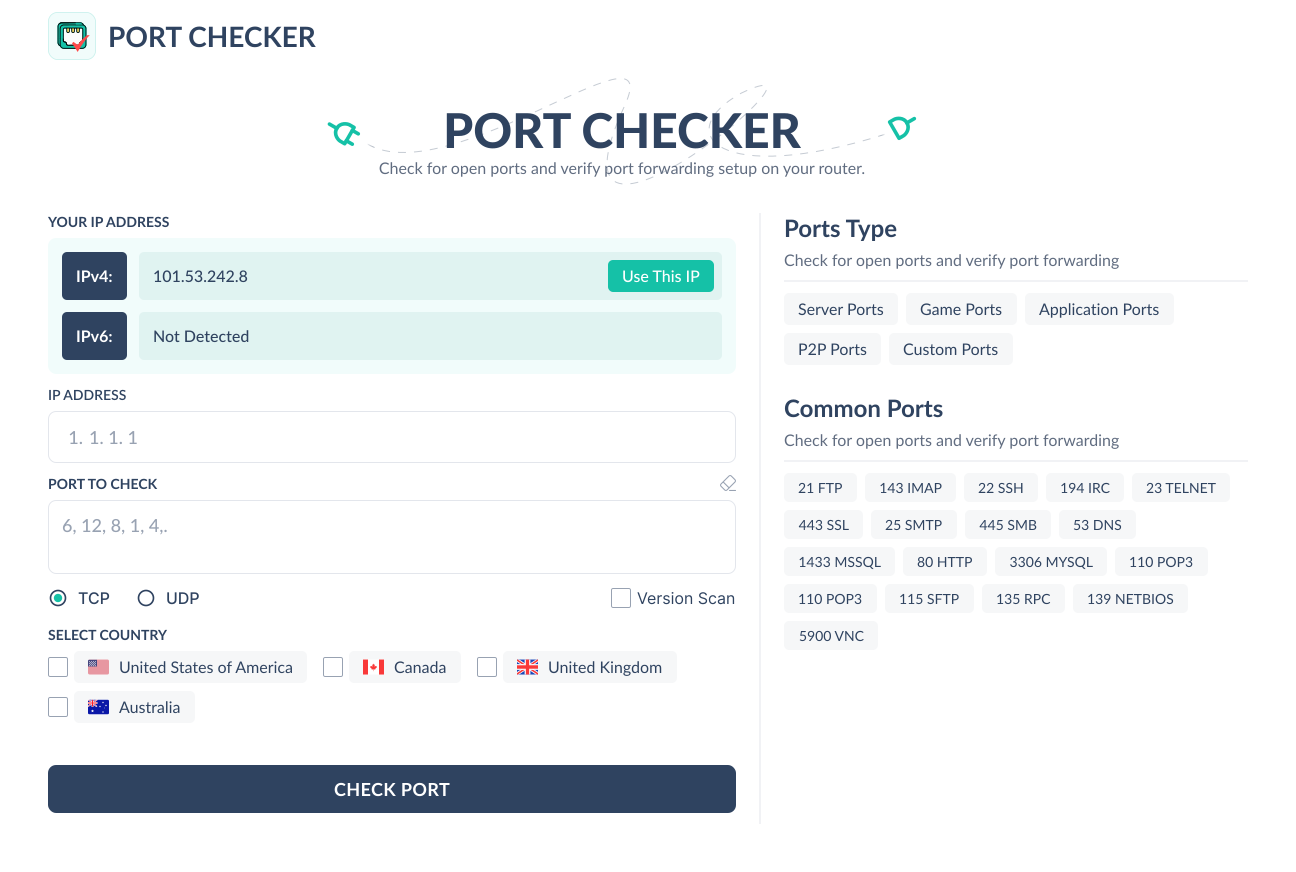
2- Enter the IP address of the host and port numbers you want to check. By default, it takes your network's public address to check the port. Just click the "Use this IP" button to add your IP. Type the port number, or select it in bulk using the port type on the right.
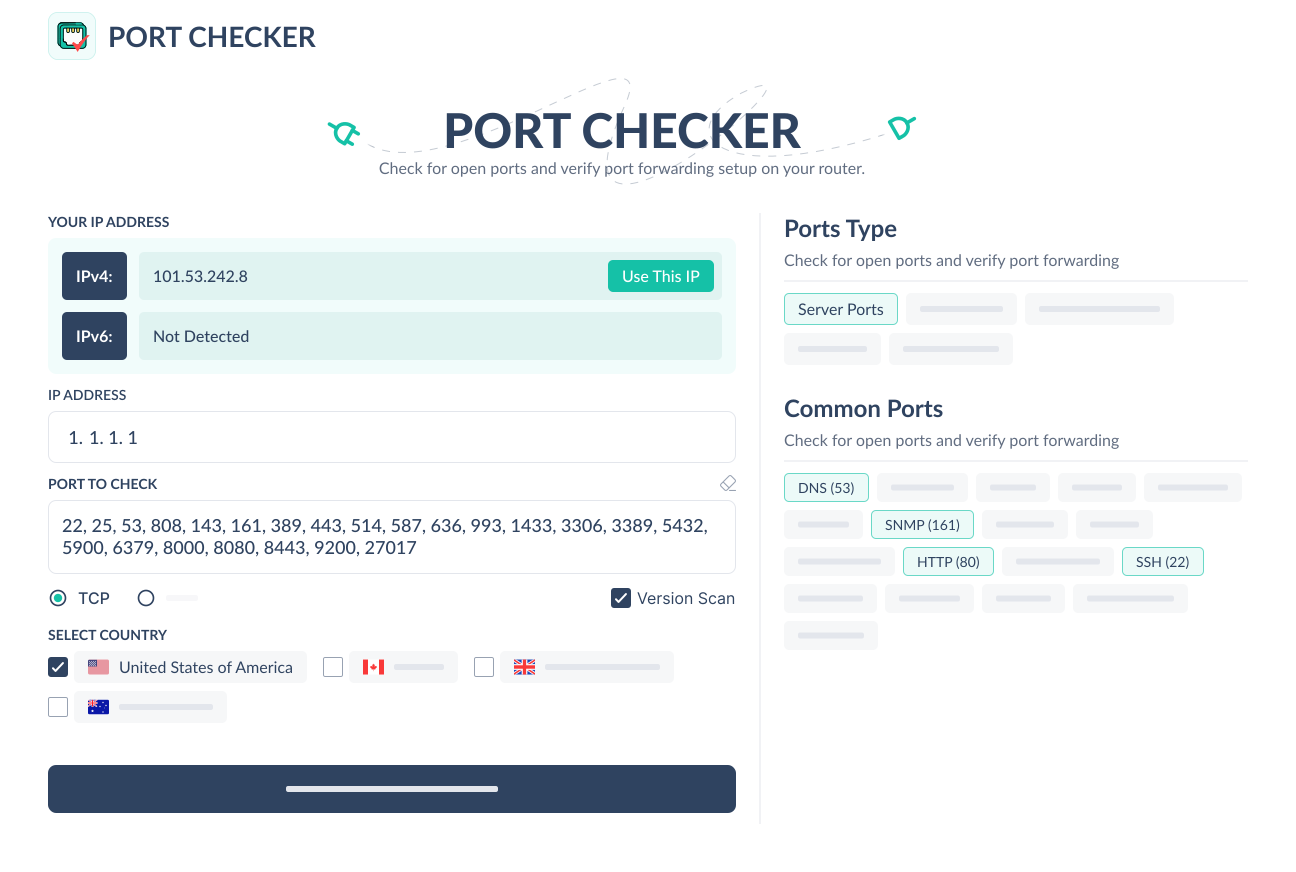
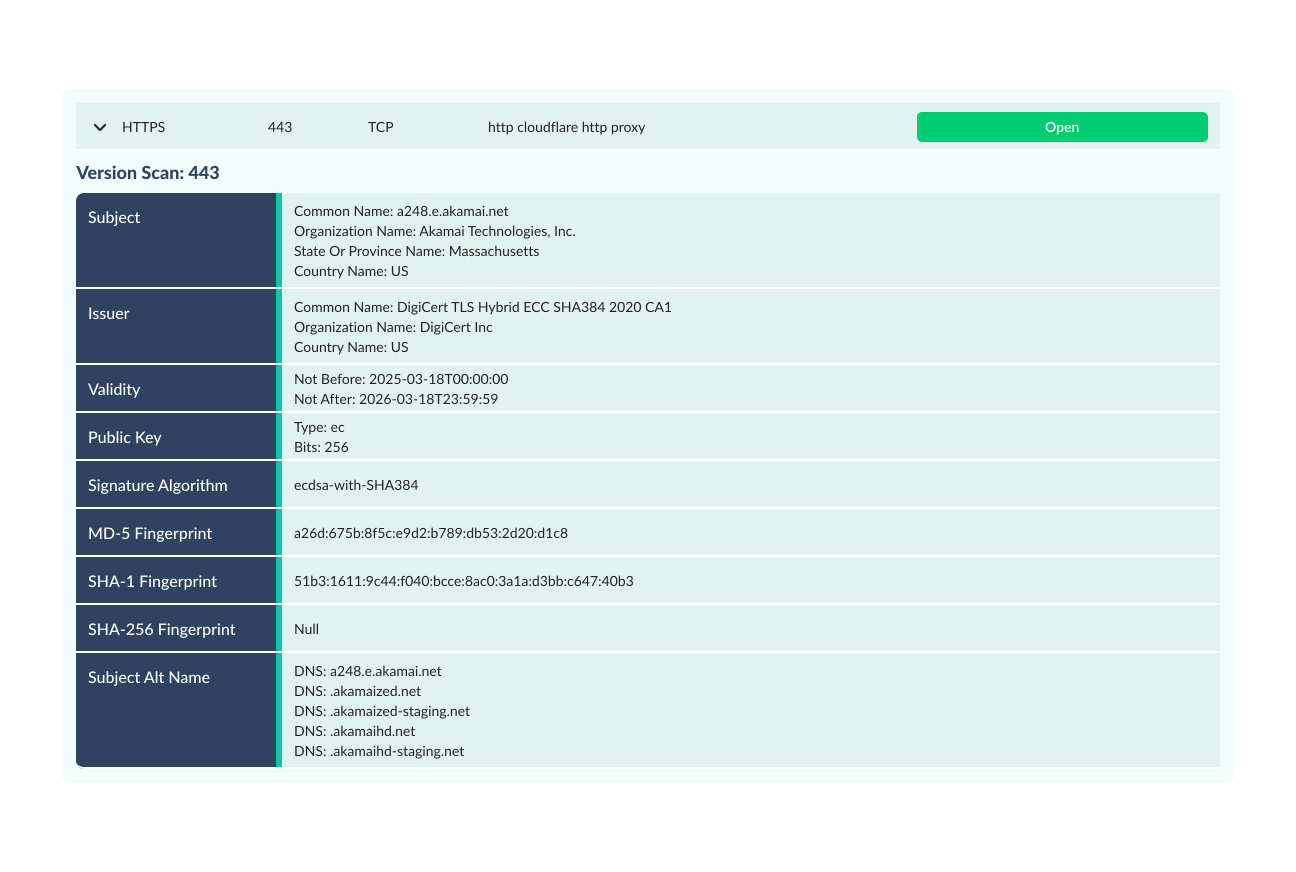
3- It provides a version scan option. You can select version scan to see detailed analytics of the HTTPS port. Here, you can even choose the country server to check the port status. By default, it is the USA.
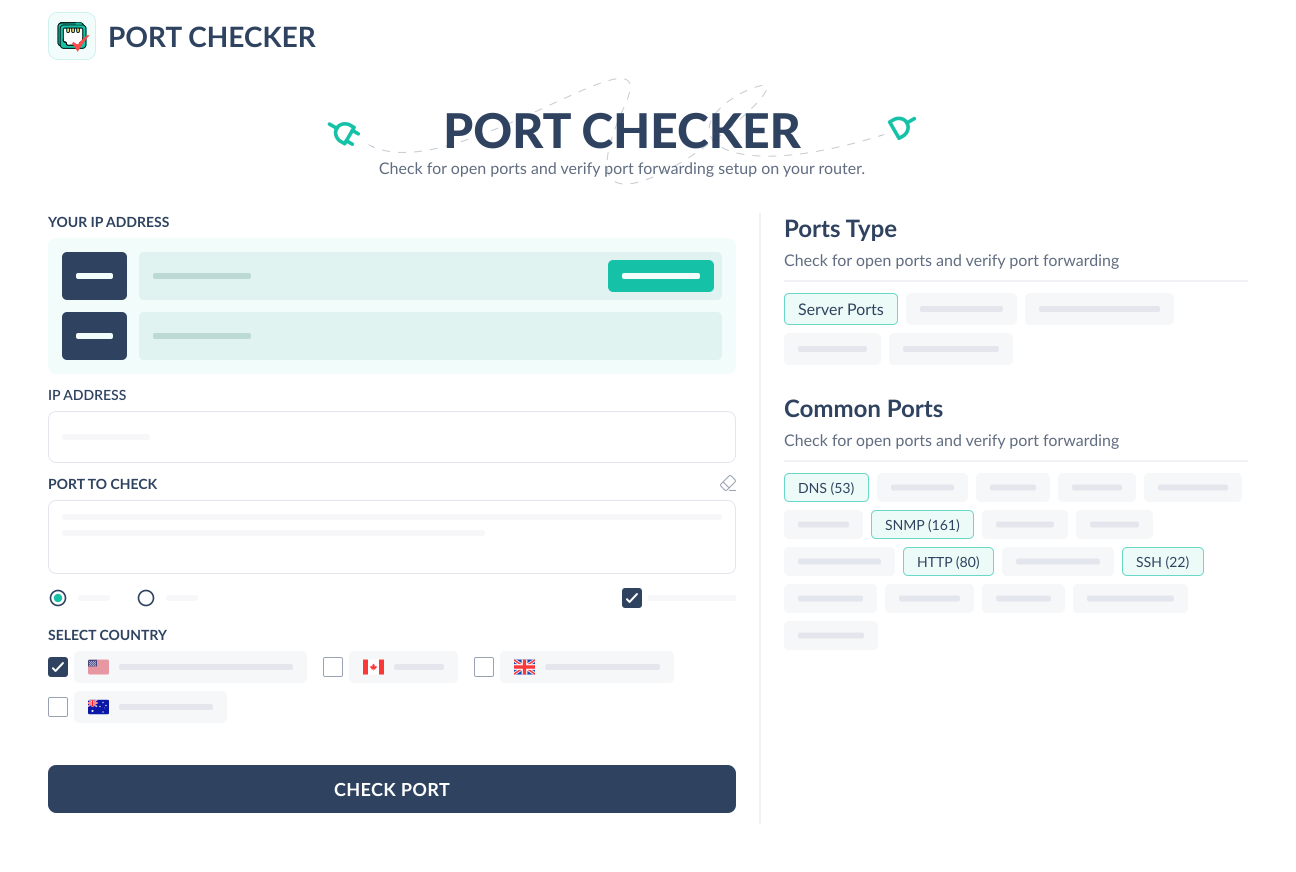
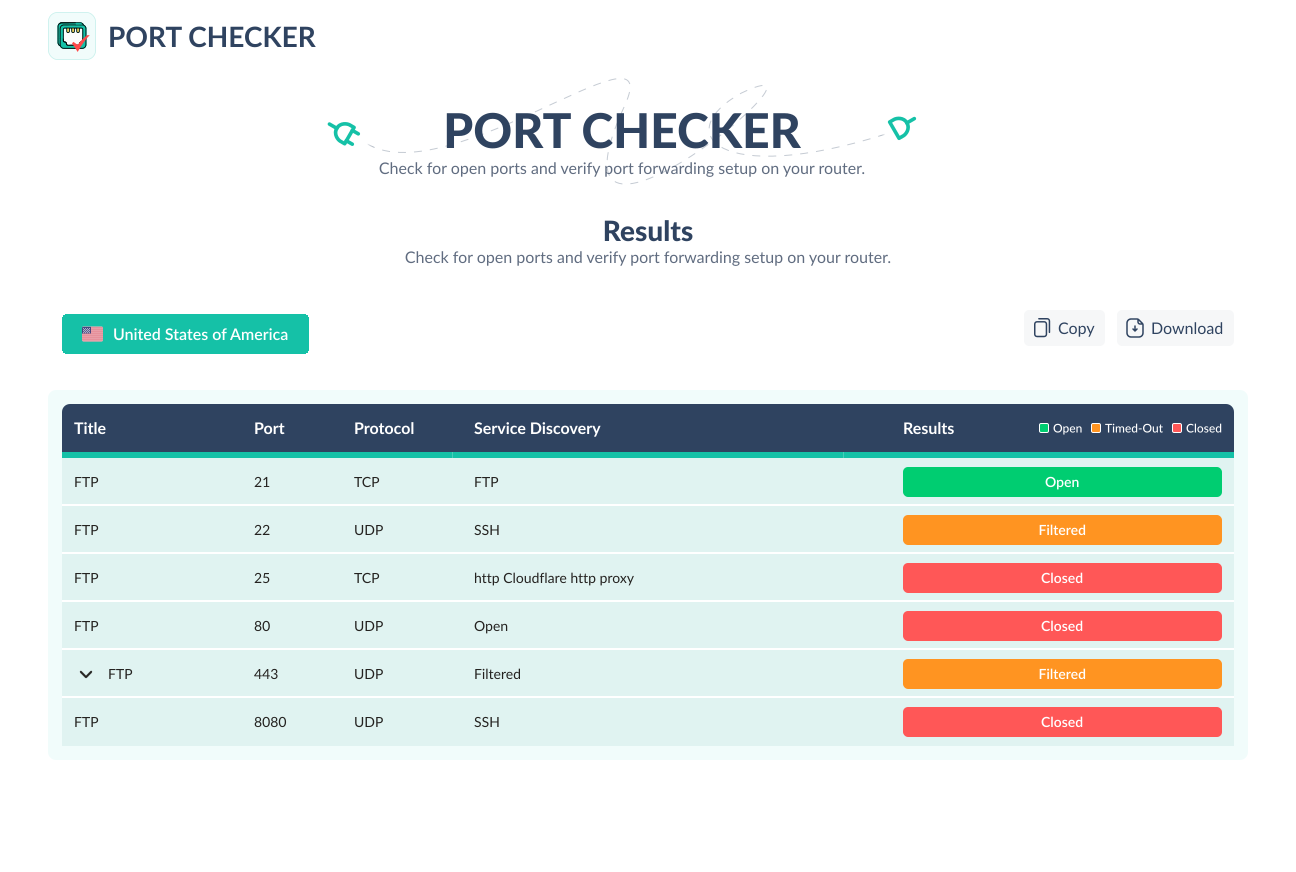
4-After selecting all options, press the "check port" button to see all port status results in tabular form. Easy to view all port results at a glance.
If you have selected the version scan option, you can see detailed information about the previous version of the HTTPS website port, including its status.
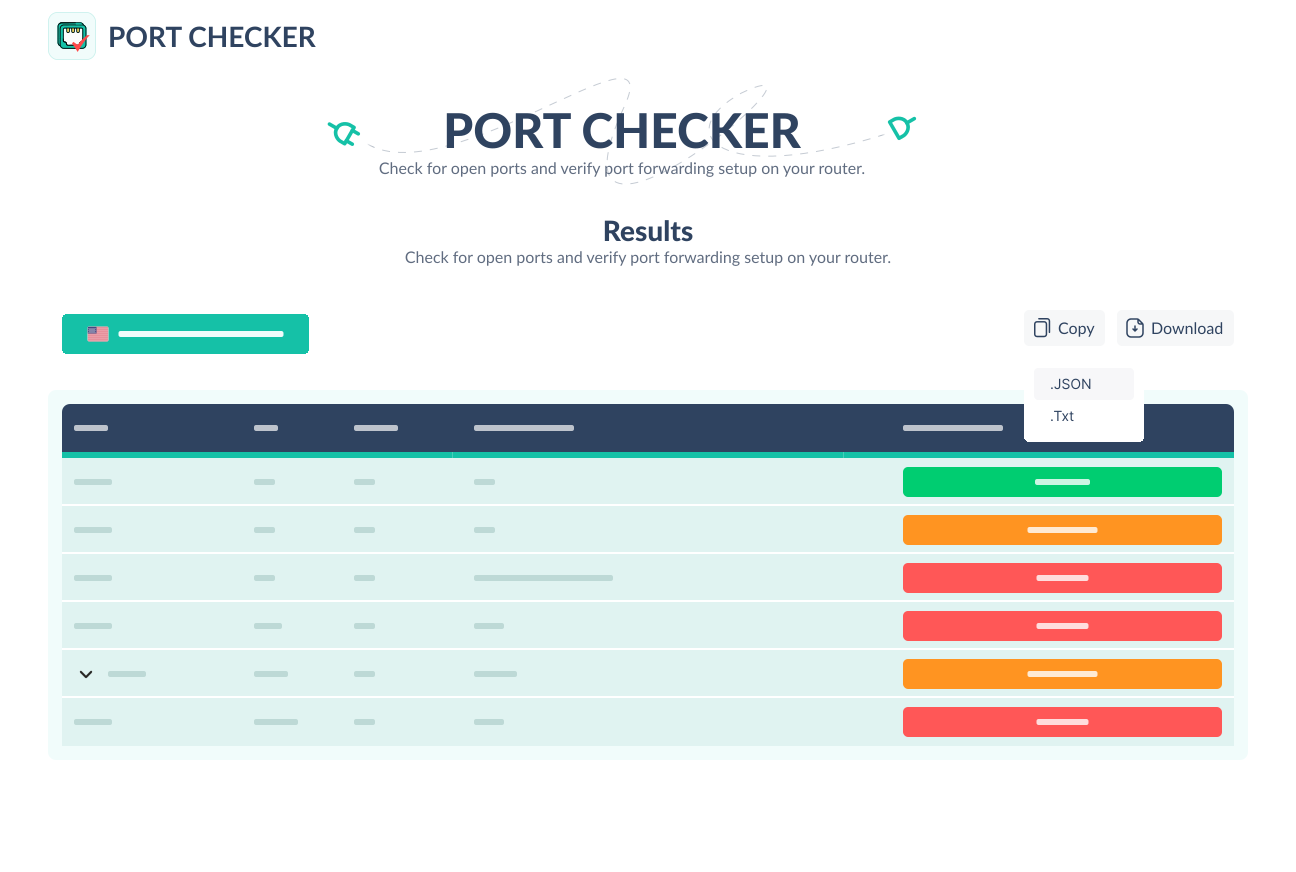
5- At this step, you can share the results with others by copying the data in JSON or TXT format. You can even export a file with downloaded data for sharing.
Check Open Port from Local Machine
Suppose you don't have an internet connection or want to check the port status locally. You can check it manually on your machine, as it takes a few minutes to test the local port status.
On Windows
Windows has built-in commands that let you test open ports on a specific ID or domain.
- Press the Windows key and type "Windows Features" in the search bar. Go to the 'turn on window' feature on/off menu.
- Search for Telenet Client, tick the check box, and press OK.
- Now, press the Windows key and type command prompt. Click on it to open a CLI window.
- Type the command prompt "telnet IP address or host name +port number" (e.g., telnet strandsgame.info 443 ) to test the port status.
- If the port is open, a cursor will appear; otherwise, a 'connect failed' message will display.
On the Mac Operating System
- Go to the Spotlight icon in the upper right corner or press Command + Spacebar.
- Type "terminal" in the search field and select the terminal
- Enter the command "nc -zv +IP address or host name+Port number" (e.g., nc -zv www.strandsgame.info 443 ) to test port status.
- nc -zv 10.10.xxx.xxx 5000
- nc -zv www.example.com 1732
- If the port is open, a message will display "succeeded".
- If the port is closed, a message will say Connection refused.
Conclusion
No doubt, scanning ports is the most important step after troubleshooting network issues and in hosting servers. It confirms that the network problem has been resolved and that the client-server connection is ready to be established.
An open port means the system allows data flow in and out, whereas a closed port shows a connection failure. Understanding how the port works and how the network is properly configured ensures smooth computer communication.